WcPay Documentation — Complete Payment Gateway Setup Guide
WcPay documentation: the complete reference to install, activate and run the #1 high-risk Fiat2Crypto payment gateway for WooCommerce. Setup in under 60 seconds — no KYC, no LLC, instant USDT payouts, zero chargebacks.
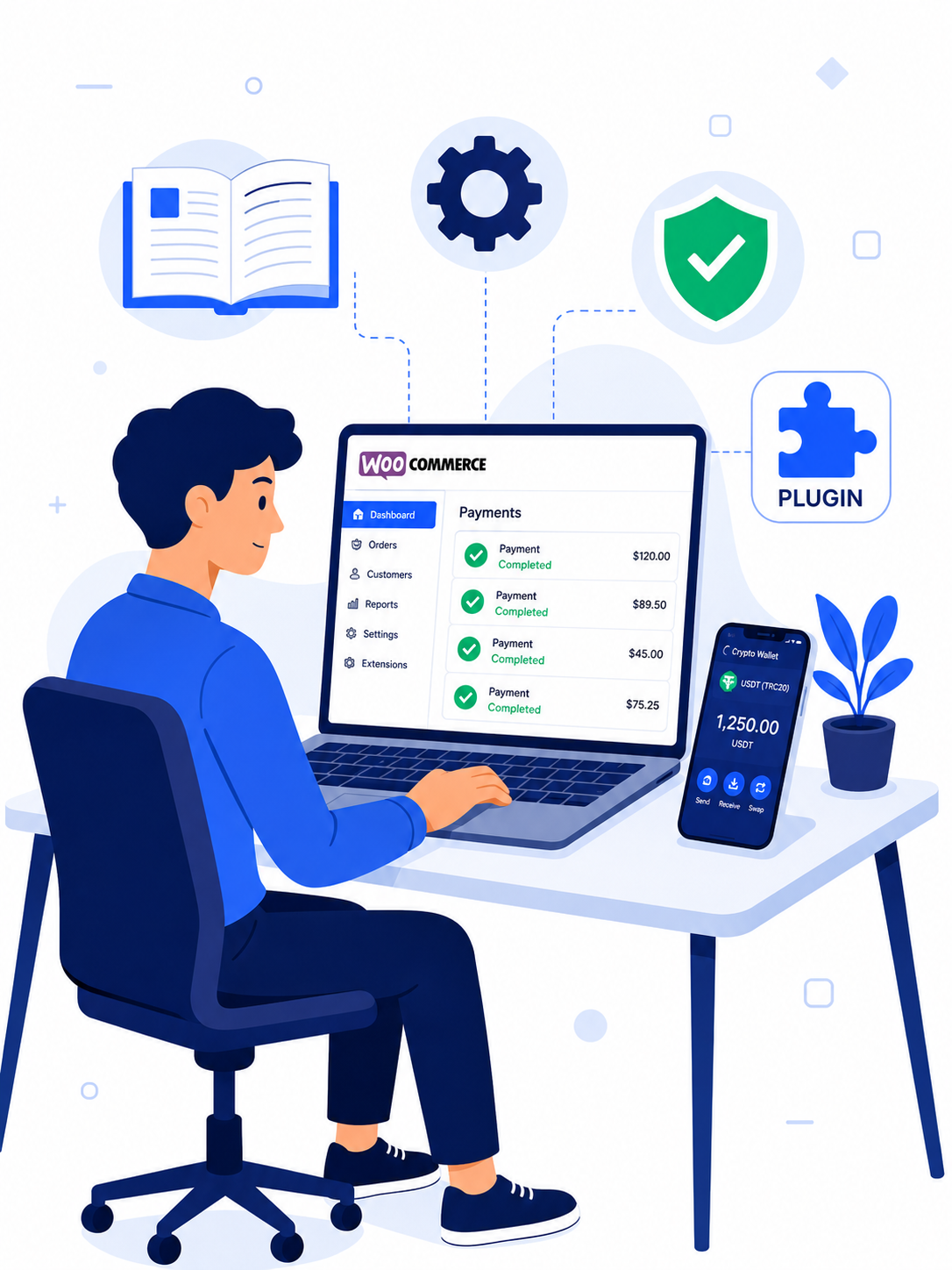
1. WcPay Documentation — Overview
This WcPay documentation is the official reference for the WcPay WooCommerce plugin. WcPay is a Fiat2Crypto payment gateway built for stores that conventional processors refuse: high-risk sectors, unregistered merchants, and sellers in countries excluded by mainstream gateways.
Your customer pays with a card or wallet they already use. You receive USDT directly to your own crypto address — instantly, with zero chargebacks. Because settlement is on-chain rather than through a card network reversal window, chargebacks are structurally impossible. Card data is handled exclusively by PCI-DSS Level 1 compliant partners, so your server never stores or processes raw card numbers.
The plugin connects to nine pre-integrated payment APIs, requires no application or underwriting, and goes live in under sixty seconds after installation. No company registration, no bank account, no merchant history — just a WooCommerce store and a USDT wallet.
2. Accepted Payment Methods
The plugin pre-integrates nine live payment APIs. Each converts the incoming payment and settles USDT to your wallet automatically — no individual API contract or configuration needed. All methods appear at checkout immediately after activation per this WcPay documentation:
| Customer pays with | You receive | Availability |
|---|---|---|
| Credit & debit cards (Visa, Mastercard, Amex) | Instant USDT | Worldwide |
| Stripe | Instant USDT | Worldwide |
| Apple Pay | Instant USDT | Worldwide |
| Google Pay | Instant USDT | Worldwide |
| PayPal | USDT / PAYUSD | Worldwide |
| Revolut Pay | Instant USDT | Worldwide |
| Binance Pay | Instant USDT | Worldwide |
| Interac | Instant USDT | Canada only |
| UPI / IMPS | Instant USDT | India only |
Why nine methods matter for conversion
Apple Pay and Google Pay raise mobile conversion significantly because no card number needs to be typed. PayPal captures buyers who choose it by default regardless of other options present. Binance Pay serves crypto-native buyers who prefer paying from their exchange balance. UPI and Interac open entire national markets — India and Canada respectively — that card-only acceptance partially misses. Each method you activate recovers a segment of buyers who would otherwise abandon at the payment step.
3. System Requirements
- A live WordPress installation with WooCommerce active and configured.
- A USDT wallet address on the Polygon network — Trust Wallet, MetaMask, Binance, Bybit, KuCoin, OKX, or any compatible wallet or exchange that supports Polygon USDT deposits.
- HTTPS enabled on your domain — required for card payment processing on any gateway.
- WordPress admin access to upload and activate plugins.
- A valid licence key received by email after purchase.
4. What You Receive After Ordering
As soon as your payment confirms, the following is delivered automatically to your email address:
- Plugin archive — the installable
wcpay.zipfile, ready to upload directly to WordPress without unzipping. - Licence key — your activation code, bound to the domain and plan you purchased.
- Setup reference — a link back to this guide for all configuration steps.
Delivery is fully automatic — no manual processing on our side. If you do not receive the email within ten minutes, check your spam folder first, then write to support@wcpay.us with your order reference. See the pricing page for available plans, limits, and the difference between Monthly, Annual, and Lifetime licences.
5. Installation — Step by Step
The installation steps in this WcPay documentation take under sixty seconds on any standard WordPress hosting environment, including shared hosting, VPS, and managed WordPress platforms.
-
Download the plugin archive
Open your delivery email and save the
wcpay.zipfile to your computer. Do not unzip it — WordPress requires the compressed archive as-is during the upload step. -
Upload to WordPress
In your WordPress admin panel go to
Plugins → Add New → Upload Plugin. Click Choose File, selectwcpay.zip, then click Install Now. -
Activate the plugin
After the upload completes, click Activate Plugin. WcPay now appears under
WooCommerce → Settings → Paymentsin your payment methods list. - Open the gateway settings Find WCPAY.US in the payments list and click Manage to open the configuration panel where you will enter your licence key and wallet address.
6. Licence Activation
Paste the activation code from your delivery email into the Activation Code field, then click Save changes. The plugin validates the key against our licence server and unlocks payment processing immediately — no waiting period or manual review. This is the fastest part of the setup described in this WcPay documentation.
7. Settings Reference
| Setting | Purpose | Required |
|---|---|---|
| Enable / Disable | Turns the gateway on or off at checkout without uninstalling the plugin. | Yes |
| Title | Label customers see at checkout — e.g. Pay by Card or Wallet. | Yes |
| Description | Short explanatory text displayed under the title on the checkout page. | No |
| Wallet Address | Your USDT payout destination. Format: 0x followed by 40 hexadecimal characters (Polygon address). | Yes |
| Icon URL | URL of a custom logo to display beside the method name at checkout. | No |
| Activation Code | Your licence key from the delivery email. Validates against our server on save. | Yes |
8. Wallet and Payouts
Enter your USDT wallet address exactly as your wallet application displays it. Copy and paste — never retype manually. One incorrect character sends funds to an uncontrolled address with no recovery path for anyone, including our support team. The payout flow described in this WcPay documentation works as follows: the processing partner deducts approximately 4.5% as an API partner fee, then sends the remaining USDT to your configured Polygon address. The plugin licence itself adds no percentage fee on top of this.
Payouts settle on the Polygon (MATIC) network. Transaction fees are a fraction of a cent and confirmation is near-instant regardless of where you or your customer are located. This makes Polygon the ideal settlement layer for a globally accessible payment gateway.
Compatible wallets and exchanges for USDT payouts
Any wallet or exchange supporting Polygon USDT deposits works as a payout destination: Trust Wallet, MetaMask, Binance, Bybit, KuCoin, OKX, Kraken, and most other major platforms. If you use an exchange deposit address, log into the exchange and confirm that Polygon is listed as an available network for USDT deposits on that specific account — some exchanges require you to manually activate each network per currency before deposits are credited.
9. Checkout Flow — End to End
Understanding what happens during every transaction helps you configure your store correctly and diagnose any issues. The sequence below reflects what the WcPay documentation describes as the standard checkout path:
- Customer selects the payment method — WcPay appears alongside all other active WooCommerce gateways on your checkout page.
- Payment details are entered — card data is submitted directly to PCI-DSS Level 1 compliant partner infrastructure. Your WordPress server never receives, sees, or stores card numbers.
- Processor authorises and converts — the card network approves the charge; the processing partner converts the fiat amount to USDT at the live rate at the time of the transaction.
- USDT reaches your wallet — the converted amount minus the 4.5% partner fee arrives at your Polygon address. Polygon confirmations typically complete within a few seconds.
- WooCommerce order updated automatically — the plugin receives a server-to-server callback from the processing partner and sets the order status to Processing. Your standard fulfilment workflow continues from there.
10. Supported Business Sectors
A primary reason sellers consult this WcPay documentation is to confirm whether their product category is accepted. The following sectors are supported with no additional application, no surcharge, and no sector-specific approval:
- IPTV and streaming services — live TV, VOD, sports packages, adult-category lawful content
- Digital downloads — software, ebooks, online courses, templates, audio and video files
- Software licences — SaaS subscriptions, desktop applications, WordPress plugins and themes
- Dropshipping — any product category, any supplier country
- Recurring subscription billing — monthly, quarterly, or annual cycles
- Coaching and consulting — individual sessions, group programmes, paid membership communities
- Nutraceuticals and supplements — lawful health and wellness products
- Adult-adjacent lawful goods — products legal in both the merchant's and buyer's jurisdiction
- First-time merchants — no prior processing history required
- Unregistered individuals and sole traders — no company formation needed
Your sector does not change your pricing and does not require a separate approval step. All accepted categories operate on identical terms, with the same fee structure and the same payout speed.
11. Supported Countries
Per this WcPay documentation, there is no merchant-side country restriction. Sellers in Morocco, Nigeria, Pakistan, Bangladesh, Algeria, Egypt, India, Indonesia, Vietnam, Turkey, Brazil, Argentina, and every other territory operate on exactly the same terms as merchants in the UK, Germany, or the United States. On the buyer side, Visa, Mastercard, and American Express cards issued in any country are accepted, alongside Apple Pay, Google Pay, Revolut Pay, PayPal, Binance Pay, Interac, and UPI.
The only excluded transactions are those involving jurisdictions under active OFAC international sanctions — a requirement that applies to every payment processor globally, not a WcPay-specific policy. See the full supported countries page for the complete breakdown by region and method availability.
12. API Integration
Custom carts and non-WooCommerce platforms can access the same Fiat2Crypto processing layer used by the plugin directly through the Card2Wallet API:
https://api.card2wallet.com/The API supports headless WooCommerce, bespoke checkout pages, and standalone e-commerce platforms that need card-to-USDT settlement without installing a WordPress plugin. Full endpoint documentation, request and response schemas, webhook signature verification, and sandbox credentials are all provided with your API access. Write to support@wcpay.us with your platform type and expected monthly volume to request credentials.
For on-chain settlement confirmation and Polygon wallet integration reference, see the official Polygon developer documentation.
13. Testing Before Going Live
Before accepting real customer payments, the WcPay documentation recommends running one complete end-to-end test order to verify every stage of the flow:
- Place a small order on your store using a real card — a low-value amount is sufficient.
- Confirm the payment method appears at checkout with the title you configured in the plugin settings.
- Verify USDT arrives at your Polygon wallet address after the transaction completes successfully.
- Confirm the WooCommerce order status changes to Processing automatically via the server callback.
- Check that the WooCommerce order confirmation email was delivered correctly to the test email address.
- Verify the order appears correctly in your WooCommerce order list with the payment method shown as WcPay.
14. Troubleshooting
If something is not working as described in this WcPay documentation, check the table below before contacting support:
| Symptom | Likely cause | Fix |
|---|---|---|
| Payment method missing at checkout | Gateway disabled or page cache serving stale version | Enable gateway in settings, purge all caches (server-side and CDN) |
| Activation code rejected | Domain mismatch or seat already in use on another domain | Verify domain matches purchase; contact support to release seat |
| USDT payout not received | Incorrect wallet address or wrong Polygon network at destination | Verify address; confirm Polygon USDT support on wallet or exchange |
| Order stays in Pending payment status | Callback request blocked by WAF or security plugin | Whitelist the callback IP range in your firewall rules |
| Card entry form not loading | No HTTPS certificate or JavaScript conflict with theme or plugin | Enable SSL; test with all other plugins deactivated to isolate the conflict |
| Plugin features stopped mid-month | Monthly licence expired | Renew plan — processing access is restored immediately on renewal |
| Plugin update not available | Licence expired or update server unreachable | Renew licence or check connectivity to our licence server |
If your issue is not in the table above, write to support@wcpay.us with your order number, site domain, WordPress version, WooCommerce version, and a description of what you observe. We reply within 24 hours on business days.
15. Frequently Asked Questions — WcPay Documentation
What does the WcPay documentation cover?
This WcPay documentation covers the complete plugin lifecycle: system requirements, step-by-step installation, licence activation, all plugin settings explained, wallet and payout configuration, the checkout flow end to end, supported high-risk sectors, supported countries and buyer payment methods, API integration for non-WooCommerce platforms, pre-launch testing, troubleshooting, and common questions. It is the single reference for every aspect of running the plugin on your WooCommerce store.
Do I need a registered company to use the plugin?
No. The eligibility requirements in the WcPay documentation are minimal: a WooCommerce store and a USDT wallet address. No LLC, no Ltd, no KYC documents, no bank account, no merchant processing history. Individuals, sole traders, and first-time online sellers are fully supported on the same terms as registered businesses operating in any country.
How long does setup take following this WcPay documentation?
Under one minute. Upload the plugin archive, click Activate, paste your licence key and USDT wallet address into the settings panel, and save. There is no application to submit and no approval to wait for. Your store begins accepting all nine payment methods as soon as you save the settings.
Can customers file chargebacks on transactions processed through the plugin?
No. Settlement is on-chain and the transaction cannot be reversed by the card network after it confirms on Polygon. Chargeback exposure is eliminated by the payment architecture itself, not by a policy. Customer refunds remain your responsibility and are issued manually from your own USDT wallet when applicable.
Which USDT wallets are compatible with the payout system?
Any wallet or exchange supporting Polygon USDT deposits: Trust Wallet, MetaMask, Binance, Bybit, KuCoin, OKX, and most major platforms. Confirm Polygon USDT is enabled on your exchange account before saving the deposit address — some exchanges require manual network activation per currency per account.
What does the plugin cost per transaction?
The licence fee covers plugin access only. An API partner processing fee of approximately 4.5% is deducted from each transaction by the processing partner before USDT reaches your wallet. There are no hidden fees, no rolling reserve, no minimum monthly transaction volume, and no chargeback insurance surcharge.
Can I run the plugin on multiple WooCommerce sites?
Monthly and Annual plans cover one domain. The Lifetime plan covers three domains. Additional sites require additional licences. Contact support for multi-site pricing options. The installation steps in the WcPay documentation are identical for each additional site — the process takes under a minute per domain.
Is the plugin PCI compliant?
Card data is transmitted directly to PCI-DSS Level 1 compliant partner infrastructure and is never stored on or transmitted through your WordPress server or database. Your WooCommerce store is fully out of scope for cardholder data storage under PCI-DSS, which simplifies your compliance posture significantly compared to running a self-hosted card form.
Where can I find support beyond this WcPay documentation?
Write to support@wcpay.us with your order number, domain, WordPress version, WooCommerce version, and a clear description of your issue. Support replies within 24 hours on business days. The WcPay documentation on this page is updated with every plugin release and is the first place to check for any configuration question.
Need Help? Contact Support
Send your order number, site domain, WordPress version and a description of the issue.
We reply within 24 hours on business days.
support@wcpay.us